Embedded Media
Image Size Caption
Keep Media Stable and Described
A figure reserves image space, describes the chart, captions it, and links to the underlying text data.
Program
Images need more than a file path. Good media markup gives the browser a stable box and gives readers a useful text alternative.
image_size_caption.html
Visuals: captured from real browser rendering
<figure class="media-card">
  <img src="sales-chart.png" alt="Bar chart showing sales rising from 10 to 14." width="320" height="180" loading="lazy">
  <figcaption>Sales trend for the week.</figcaption>
  <p><a href="sales-chart.txt">Read the chart data</a></p>
</figure>
Create the media figure.
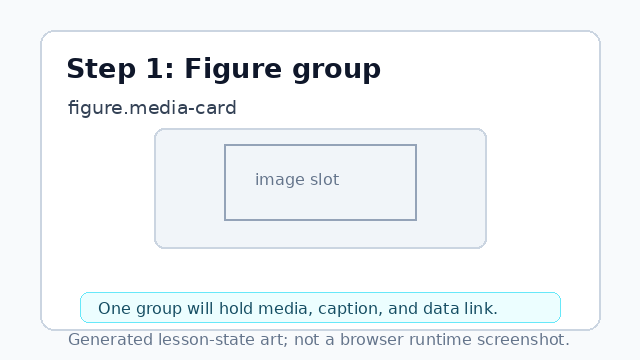
The figure creates one group for the image, caption, and data link. Add the chart image and alt text.
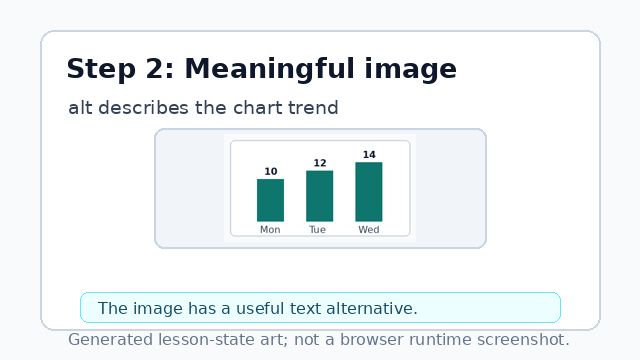
The alt text describes the chart's meaning, not just that it is an image. Reserve stable image dimensions.
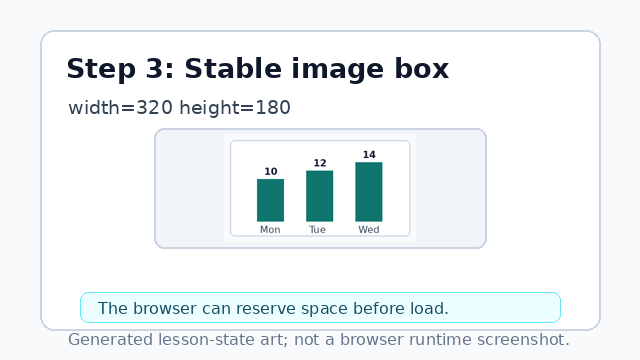
Width and height reduce layout shift while the image loads. Attach the visible caption.
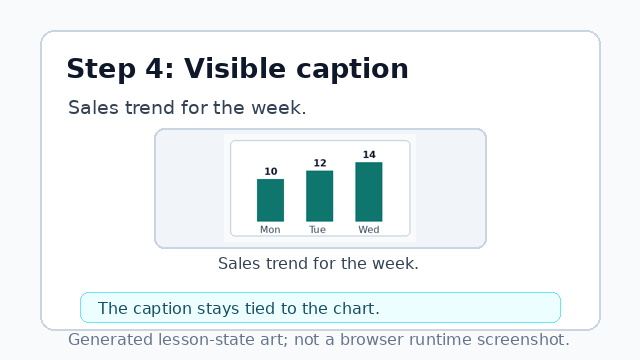
The figcaption keeps nearby context tied to the chart. Link to the chart data.
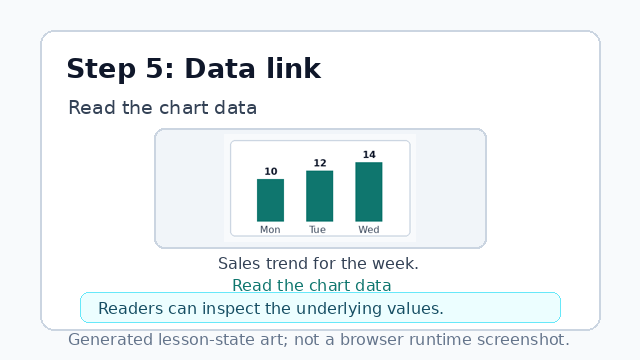
The text data link gives readers a direct way to inspect the chart values.
width and height
Image width and height let the browser reserve space before the file finishes loading.
figcaption
figcaption gives visible context for the media inside a figure.