ViewBox Text and Gradients
ViewBox Scale Icon
A small SVG icon uses viewBox coordinates so the same shapes scale cleanly to the rendered width and height.
Program
viewBox defines the internal coordinate system for an SVG. Width and height decide how that coordinate system is displayed on the page.
viewbox_scale_icon.html
Visuals: captured from real browser rendering
<svg viewBox="0 0 100 60" width="300" height="180" role="img" aria-label="Battery at seventy percent">
  <rect x="8" y="14" width="76" height="32" rx="6" fill="#e2e8f0"/>
  <rect x="14" y="20" width="52" height="20" rx="4" fill="#16a34a"/>
  <rect x="86" y="24" width="6" height="12" rx="2" fill="#64748b"/>
</svg>
Set the coordinate system.
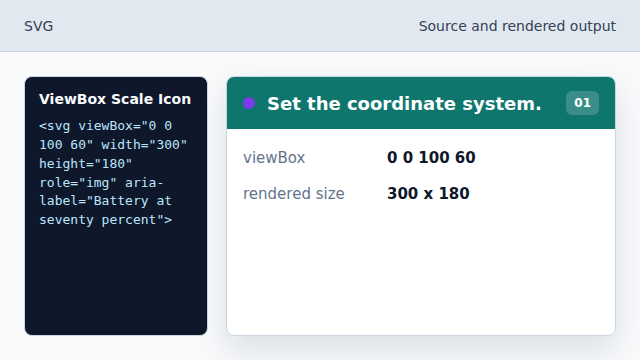
Shapes use a small internal coordinate space that can scale up. Name the graphic.
The SVG can be announced as one image. Round the battery shell.
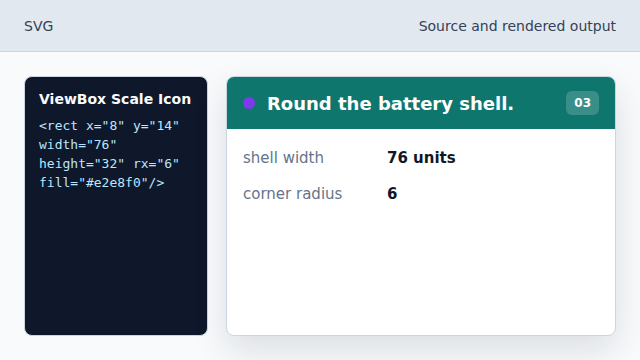
rx rounds the rectangle corners. Draw the charge level.
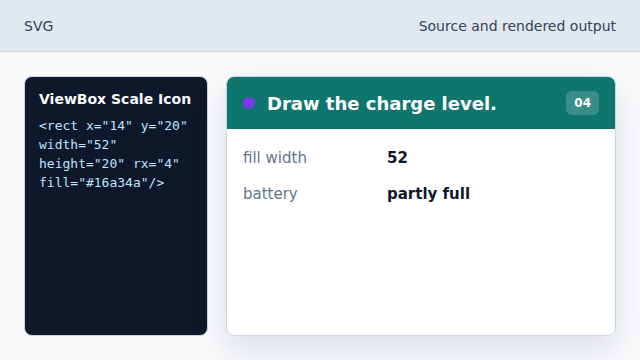
The green fill indicates about seventy percent inside the shell. Place the terminal cap.
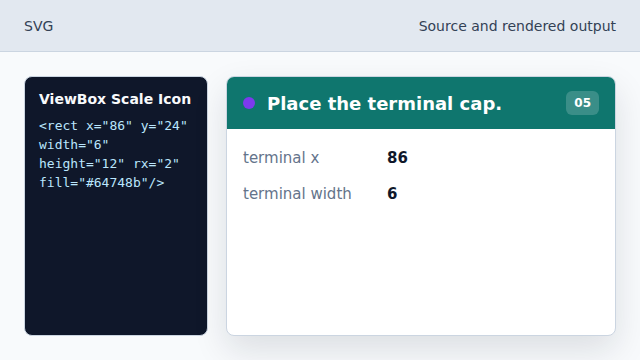
The final small rectangle completes the battery silhouette.
viewBox
viewBox maps internal SVG units to rendered size.
role img
role="img" and aria-label give an inline SVG an accessible name.