Table Spans and Headers
Colspan Summary
One Cell Labels Several Columns
A simple cost table uses colspan so the Total label covers two columns while the final amount stays aligned.
Program
Column spans merge cells horizontally. They are common in summary rows that need a wide label and one final value.
colspan_summary.html
Visuals: captured from real browser rendering
<table>
  <tr><th>Item</th><th>Qty</th><th>Cost</th></tr>
  <tr><td>Badges</td><td>4</td><td>$20</td></tr>
  <tr><td colspan="2">Total</td><td>$20</td></tr>
</table>
Create the cost table.
The table starts the grid that the summary row will use. Add Item, Qty, and Cost headers.
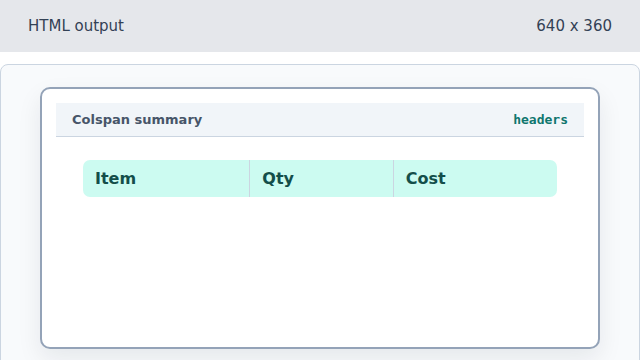
Headers make the item, quantity, and cost meanings explicit. Add the Badges data row.
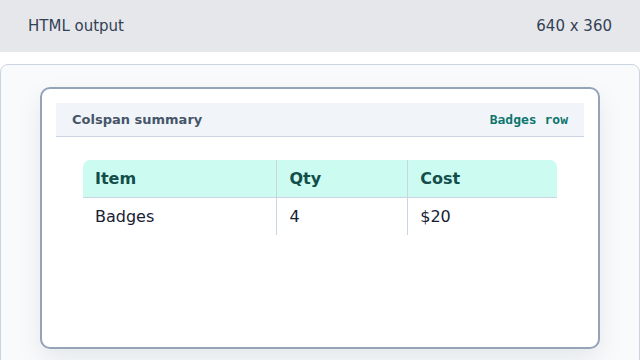
The data row fills the three-column grid normally. Span the Total label across two columns.
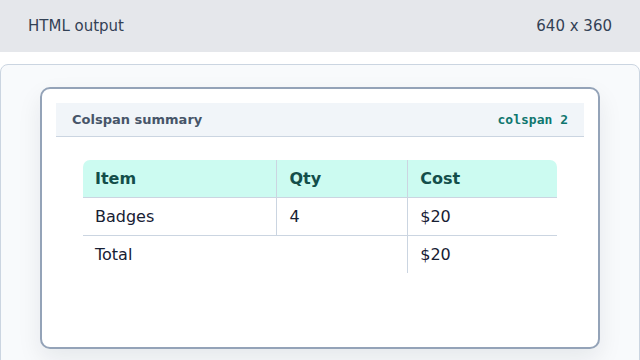
colspan lets the summary label occupy the space of two cells. Keep the total value in the Cost column.
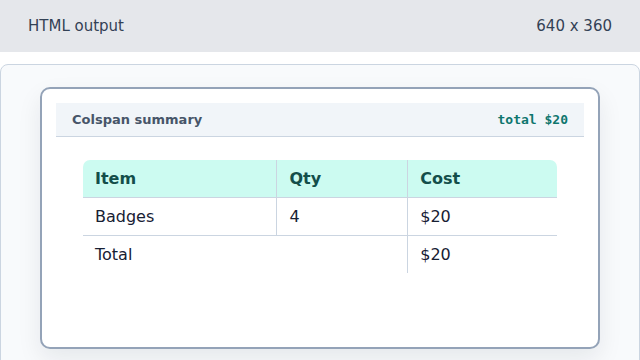
The spanned label changes the first cells while the value remains in the last column.
colspan
The colspan attribute lets one cell occupy multiple columns.
summary row
A summary row totals or describes the data rows above it.