File Selection Patterns
Selected File Summary
Pinned sample metadata renders a deterministic selected file summary without implying a real upload.
Program
A selected-file summary can show a name, size, type, and status. This lesson uses pinned sample data instead of reading a live file.
selected_file_summary.html
Visuals: captured from real browser rendering
<section class="file-summary" data-file-name="receipt.pdf" data-file-size="84 KB" data-file-type="application/pdf">
  <h2>Selected file</h2>
  <dl>
    <dt>Name</dt><dd>receipt.pdf</dd>
    <dt>Size</dt><dd>84 KB</dd>
    <dt>Type</dt><dd>application/pdf</dd>
  </dl>
  <p role="status">receipt.pdf is selected. No upload has started.</p>
</section>
<style>
  .file-summary { display: grid; gap: 8px; max-width: 28rem; border: 1px solid #94a3b8; padding: 12px; }
  .file-summary dl { display: grid; grid-template-columns: max-content 1fr; gap: 6px 12px; margin: 0; }
  .file-summary p { margin: 0; color: #475569; }
</style>
Pin the sample file data.
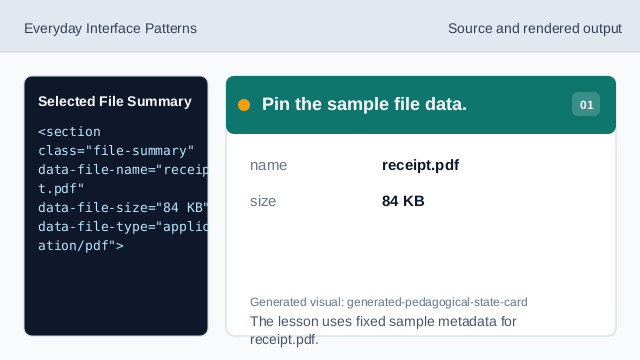
The lesson uses fixed sample metadata for receipt.pdf. Render the file name row.
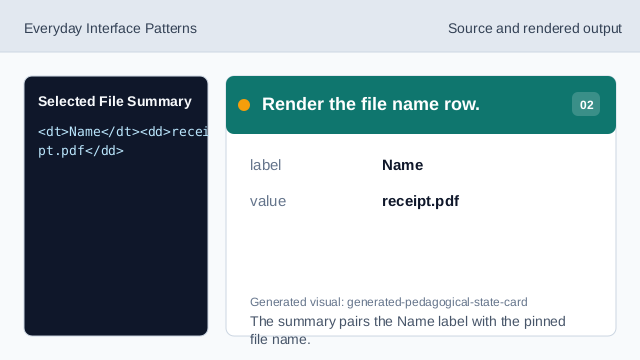
The summary pairs the Name label with the pinned file name. Render the file size row.
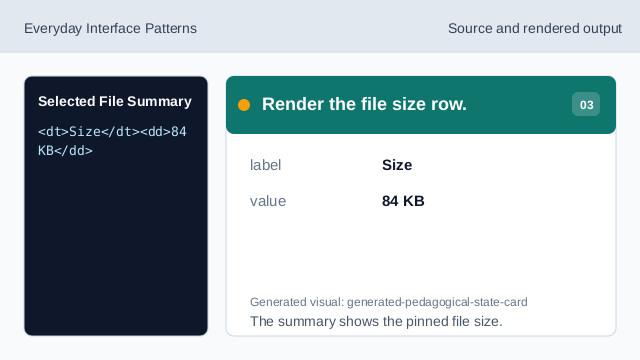
The summary shows the pinned file size. Render the file type row.
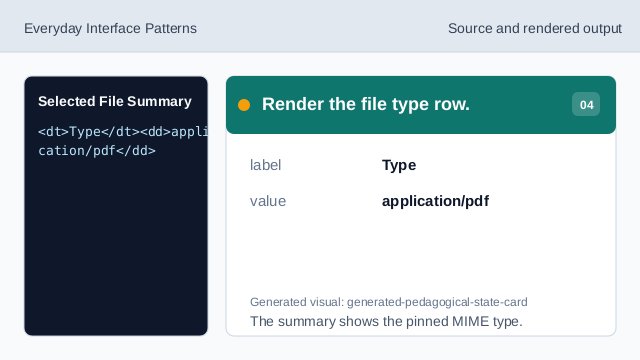
The summary shows the pinned MIME type. Add honest status text.
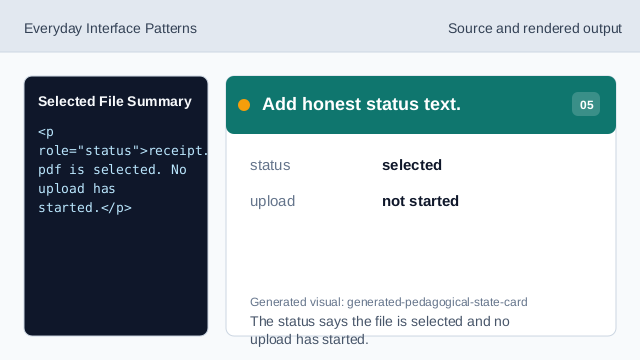
The status says the file is selected and no upload has started. Check the rendered summary.
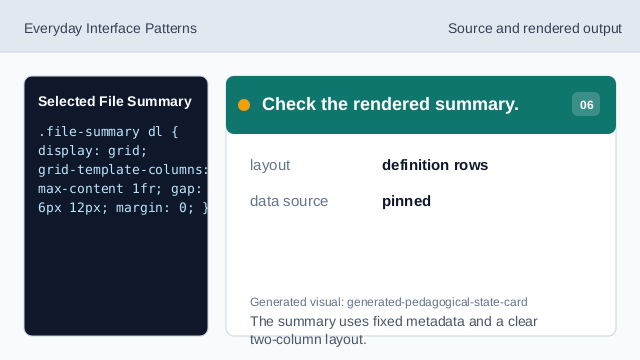
The summary uses fixed metadata and a clear two-column layout.
pinned metadata
The sample file name, size, and type are fixed lesson data.
summary row
A description list pairs each metadata label with its value.
status text
A status line explains selection without claiming an upload.