File Selection Patterns
Replace or Remove
A selected file card shows Replace and Remove controls with status text and an explicit empty-state message.
Program
After a file is selected, people need clear ways to replace it or remove it. This static lesson shows the states without performing file operations.
replace_remove_file.html
Visuals: captured from real browser rendering
<section class="file-actions" data-state="selected">
  <h2>Selected file</h2>
  <p class="file-chip"><strong>receipt.pdf</strong><span>84 KB PDF</span></p>
  <div class="actions" aria-label="File actions">
    <button type="button">Replace</button>
    <button type="button">Remove</button>
  </div>
  <p class="empty-state">After Remove: No file selected.</p>
  <p role="status">receipt.pdf is selected. No upload has started.</p>
</section>
<style>
  .file-actions { display: grid; gap: 10px; max-width: 28rem; }
  .file-chip, .empty-state { border: 1px solid #94a3b8; padding: 10px; margin: 0; }
  .actions { display: flex; gap: 8px; flex-wrap: wrap; }
</style>
Start from the selected state.
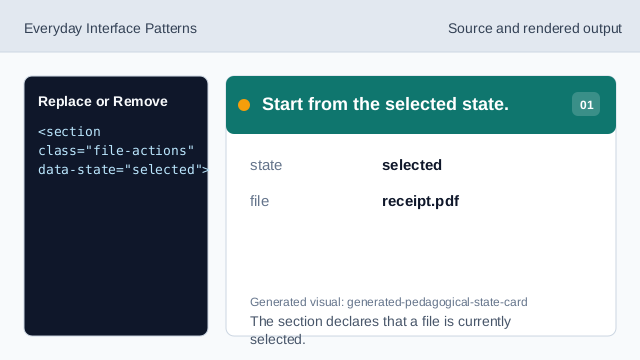
The section declares that a file is currently selected. Show the selected file chip.
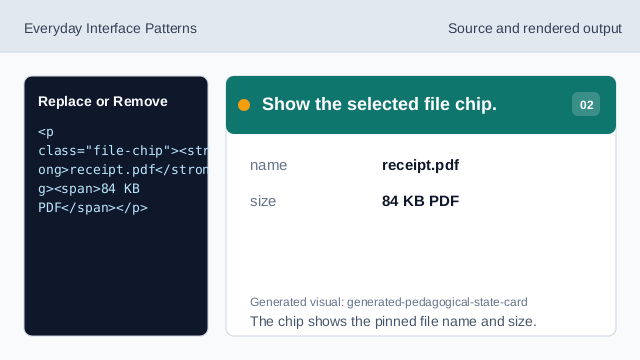
The chip shows the pinned file name and size. Add the replace affordance.
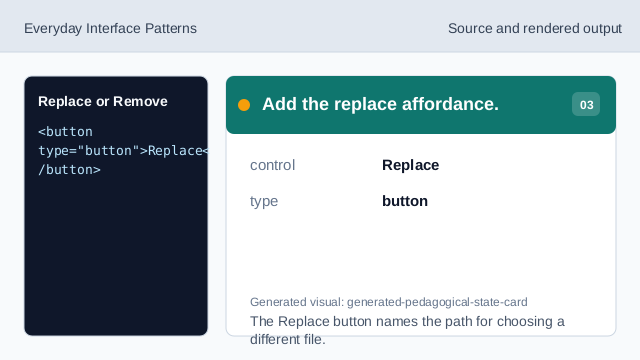
The Replace button names the path for choosing a different file. Add the remove affordance.
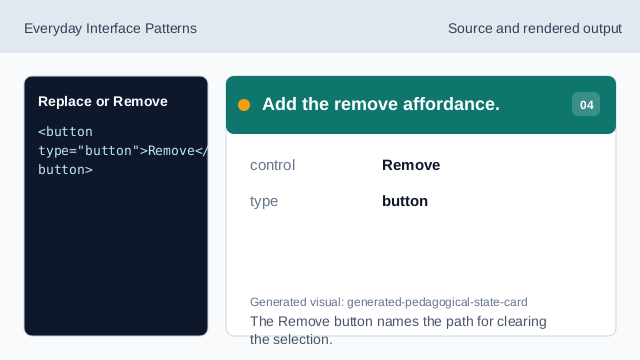
The Remove button names the path for clearing the selection. Show the empty-state copy.
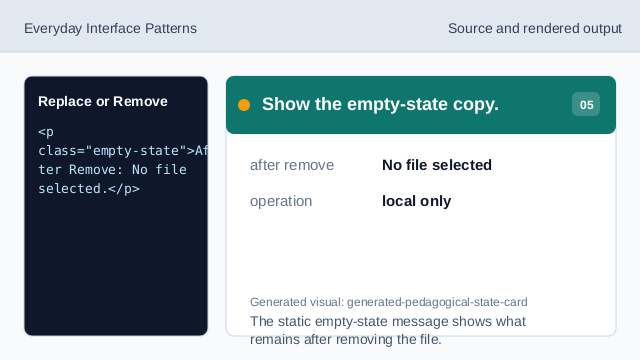
The static empty-state message shows what remains after removing the file. Check the file action flow.
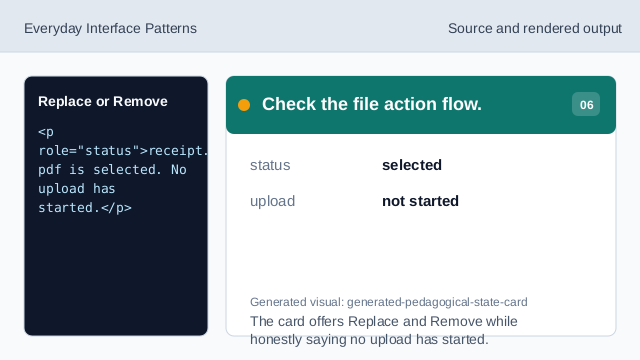
The card offers Replace and Remove while honestly saying no upload has started.
selected file
A chip or card can show the current file name and size.
replace control
Replace gives a clear path to choose a different file.
remove control
Remove gives a clear path back to the no-file state.