File Selection Patterns
File Input Help
A native file input has a label, accepted type hint, helper text, and an honest no-upload note.
Program
A file picker can explain what kind of file is expected without pretending to upload anything. The native input stays labelled, described, and local.
file_input_help_text.html
Visuals: captured from real browser rendering
<div class="file-picker">
  <label for="receipt-file">Choose receipt file</label>
  <input id="receipt-file" name="receipt" type="file" accept=".pdf,application/pdf" aria-describedby="receipt-help receipt-note">
  <p id="receipt-help">Accepted type: PDF file.</p>
  <p id="receipt-note">No upload starts in this lesson.</p>
</div>
<style>
  .file-picker { display: grid; gap: 8px; max-width: 26rem; }
  .file-picker input { padding: 8px; border: 1px solid #64748b; }
  .file-picker p { margin: 0; color: #475569; }
</style>
Connect the label to the file input.
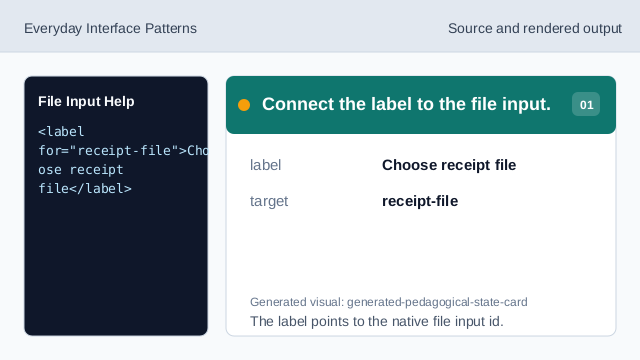
The label points to the native file input id. Use the native file control.
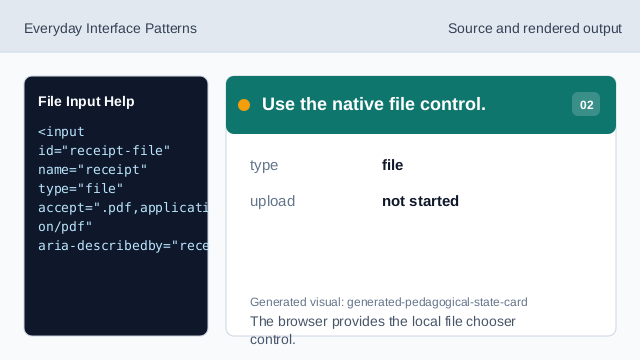
The browser provides the local file chooser control. Declare the accepted file type.
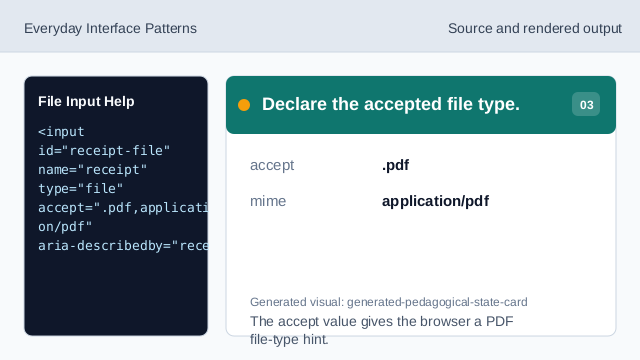
The accept value gives the browser a PDF file-type hint. Connect the helper and note.
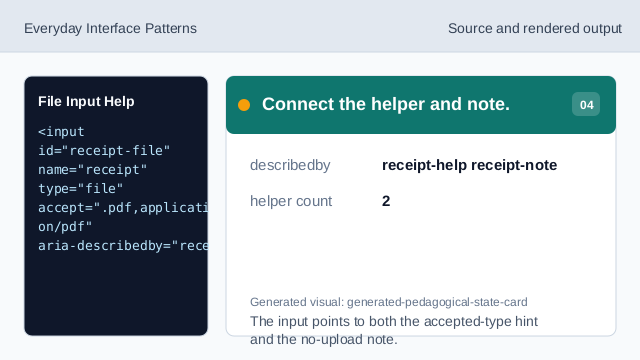
The input points to both the accepted-type hint and the no-upload note. State what does not happen.
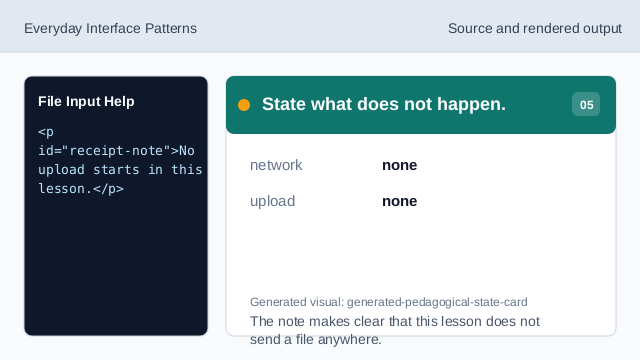
The note makes clear that this lesson does not send a file anywhere. Check the rendered picker.
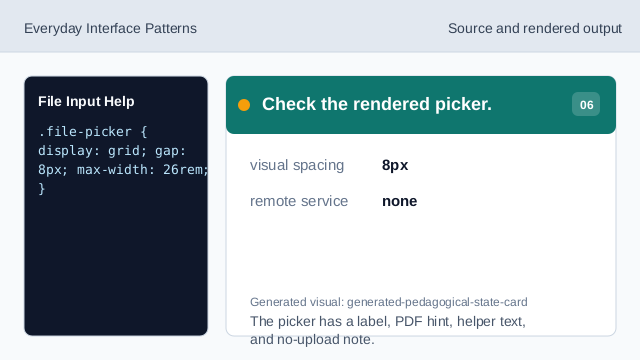
The picker has a label, PDF hint, helper text, and no-upload note.
file label
A label names the file input for sighted users and assistive technology.
accept hint
accept tells the browser which file types are expected.
no-upload note
Helper text can be honest that choosing a file does not upload it.