Order Summary Patterns
Cart Item Summary
Two pinned cart rows show item names, quantities, unit prices, and line totals with clear table labels.
Program
Cart summaries should make each item, quantity, unit price, and line total easy to verify before checkout.
cart_item_summary.html
Visuals: captured from real browser rendering
<table class="cart-table">
  <caption>Cart items</caption>
  <thead><tr><th scope="col">Item</th><th scope="col">Qty</th><th scope="col">Unit price</th><th scope="col">Line total</th></tr></thead>
  <tbody>
    <tr><th scope="row">CSS Workbook</th><td>1</td><td>$18.00</td><td>$18.00</td></tr>
    <tr><th scope="row">Web Lab Notes</th><td>1</td><td>$12.00</td><td>$12.00</td></tr>
  </tbody>
</table>
<style>
  .cart-table th, .cart-table td { border: 1px solid #94a3b8; padding: 8px; text-align: start; }
  .cart-table caption { font-weight: 700; text-align: left; }
</style>
Create the cart item table.
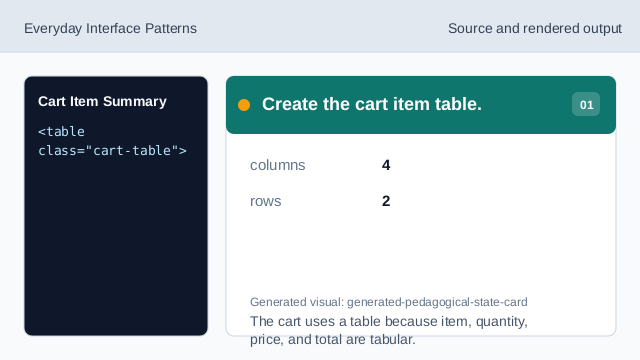
The cart uses a table because item, quantity, price, and total are tabular. Name the table.
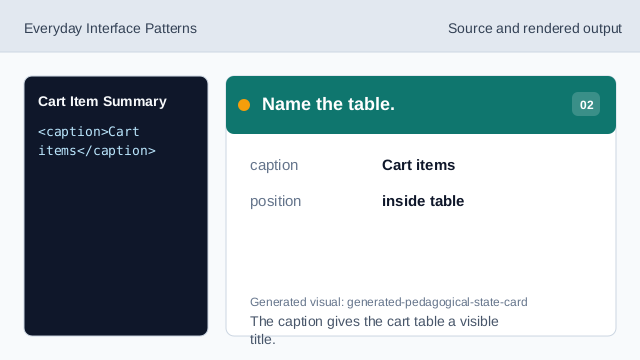
The caption gives the cart table a visible title. Label the quantity column.
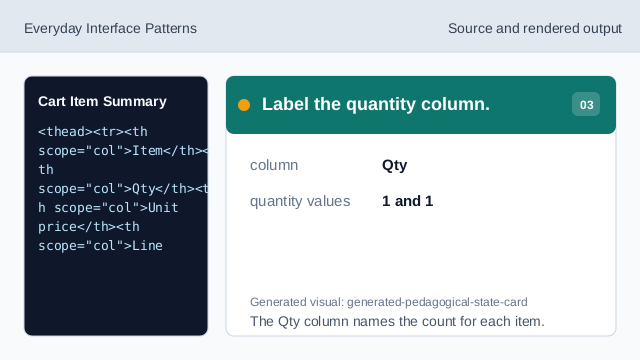
The Qty column names the count for each item. Add the first pinned cart row.
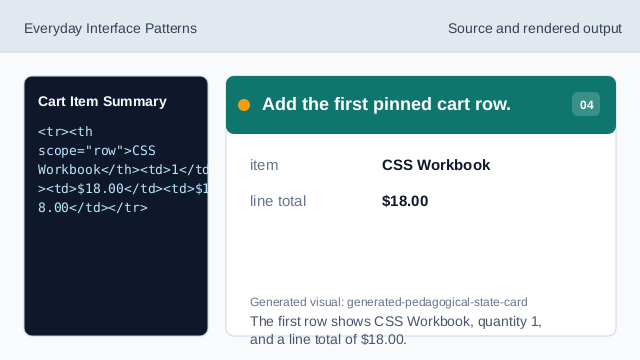
The first row shows CSS Workbook, quantity 1, and a line total of $18.00. Add the second pinned cart row.
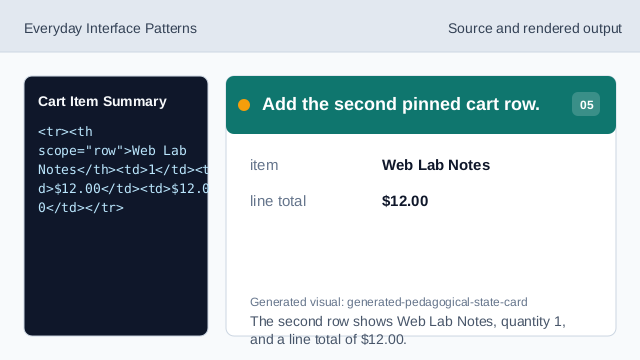
The second row shows Web Lab Notes, quantity 1, and a line total of $12.00. Check the cart summary.
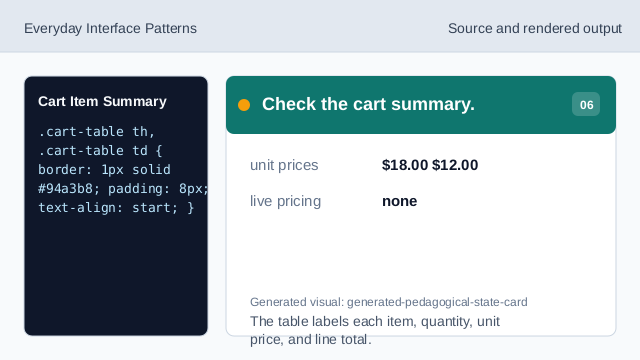
The table labels each item, quantity, unit price, and line total.
cart row
Each row shows one pinned cart item.
quantity label
A quantity column makes counts easy to verify.
line total
Line totals are visible beside item and unit price.