Input Intent Patterns
Email Field Intent
An email field uses type="email", autocomplete="email", a label, and hint text so browsers understand the contact intent.
Program
A contact email field works better when the browser can recognize both the value type and the autofill purpose.
autocomplete_email_field.html
Visuals: captured from real browser rendering
<div class="field">
  <label for="contact-email">Email address</label>
  <input id="contact-email" name="email" type="email" autocomplete="email" aria-describedby="email-hint">
  <p id="email-hint">Use the address where we can reach you.</p>
</div>
<style>
  .field { display: grid; gap: 6px; max-width: 24rem; }
  .field input { border: 1px solid #64748b; padding: 10px; }
  .field p { margin: 0; color: #475569; }
</style>
Connect the label to the input.
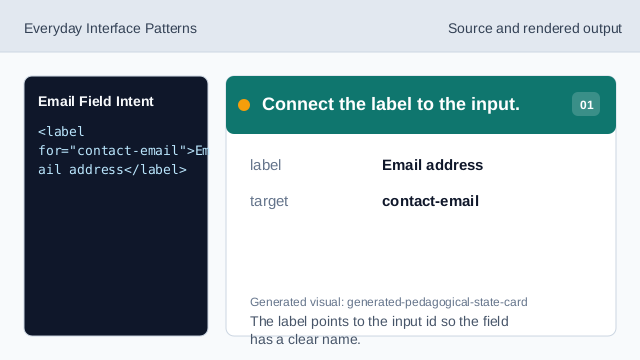
The label points to the input id so the field has a clear name. Set the email input type.
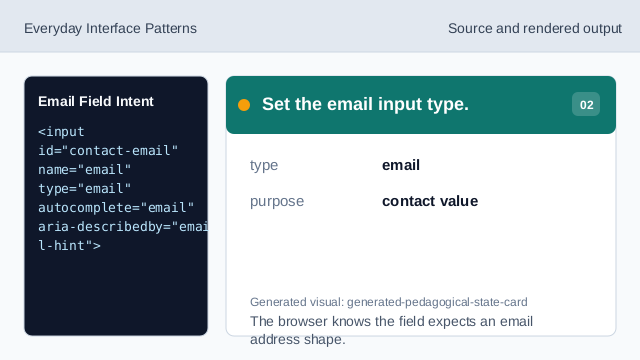
The browser knows the field expects an email address shape. Declare the autofill intent.
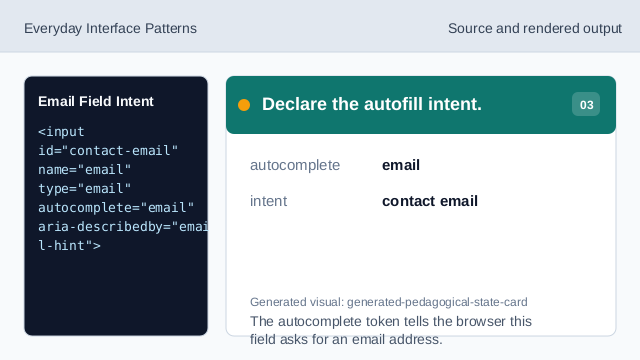
The autocomplete token tells the browser this field asks for an email address. Connect the hint text.
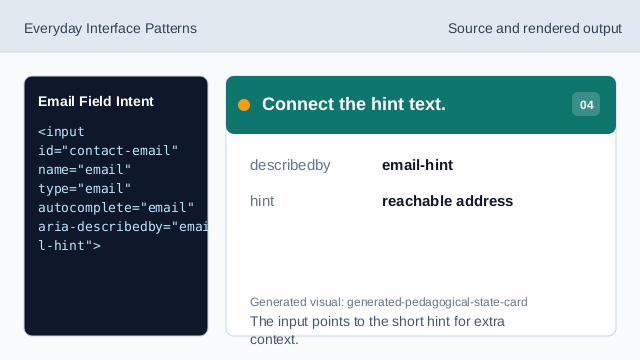
The input points to the short hint for extra context. Render the contact field.
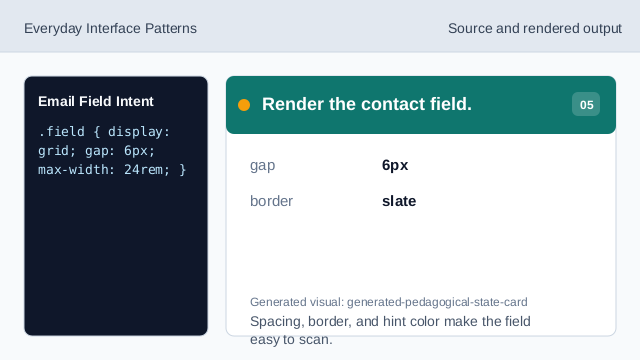
Spacing, border, and hint color make the field easy to scan. Check the field intent.
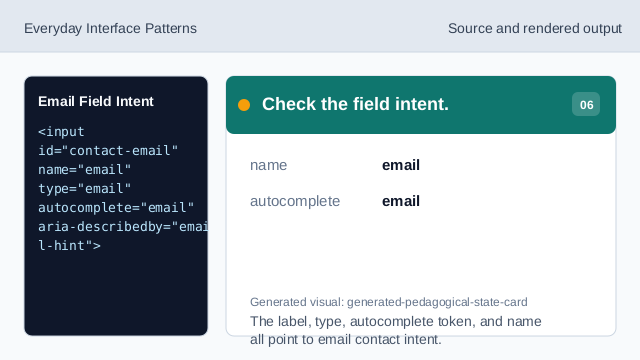
The label, type, autocomplete token, and name all point to email contact intent.
label
A label gives the input a visible and programmatic name.
type email
type="email" tells the browser the expected value shape.
autocomplete email
autocomplete="email" tells autofill this field asks for an email address.